
It’s Friday, 7:30 pm, at Baan Saeng Kitchen in Bangkok. Every table is full. Table 4 has been waiting ten minutes for someone to take their order. At table 6, a party of four wants their starters now, but the curries only after. And the GrabFood tablet on the counter keeps beeping.
Most restaurants solve this with more running: more trips to the table, more shouting to the kitchen, more typing orders from one screen into another.
The Odoo restaurant POS takes a different route. Guests order from a QR code on the table. The waiter decides when each course goes to the kitchen. The kitchen sees every note on a screen. And delivery orders can come straight into the same system.
We set this up for our fictional restaurant in an Odoo 20 database and ran one evening of service. Here’s how it went.
1. Free QR code badges on every table
In the POS floor plan, the manager clicks Get QR Codes. Odoo opens a form to order QR code badges for your tables: engraved and shipped to you, free of charge.
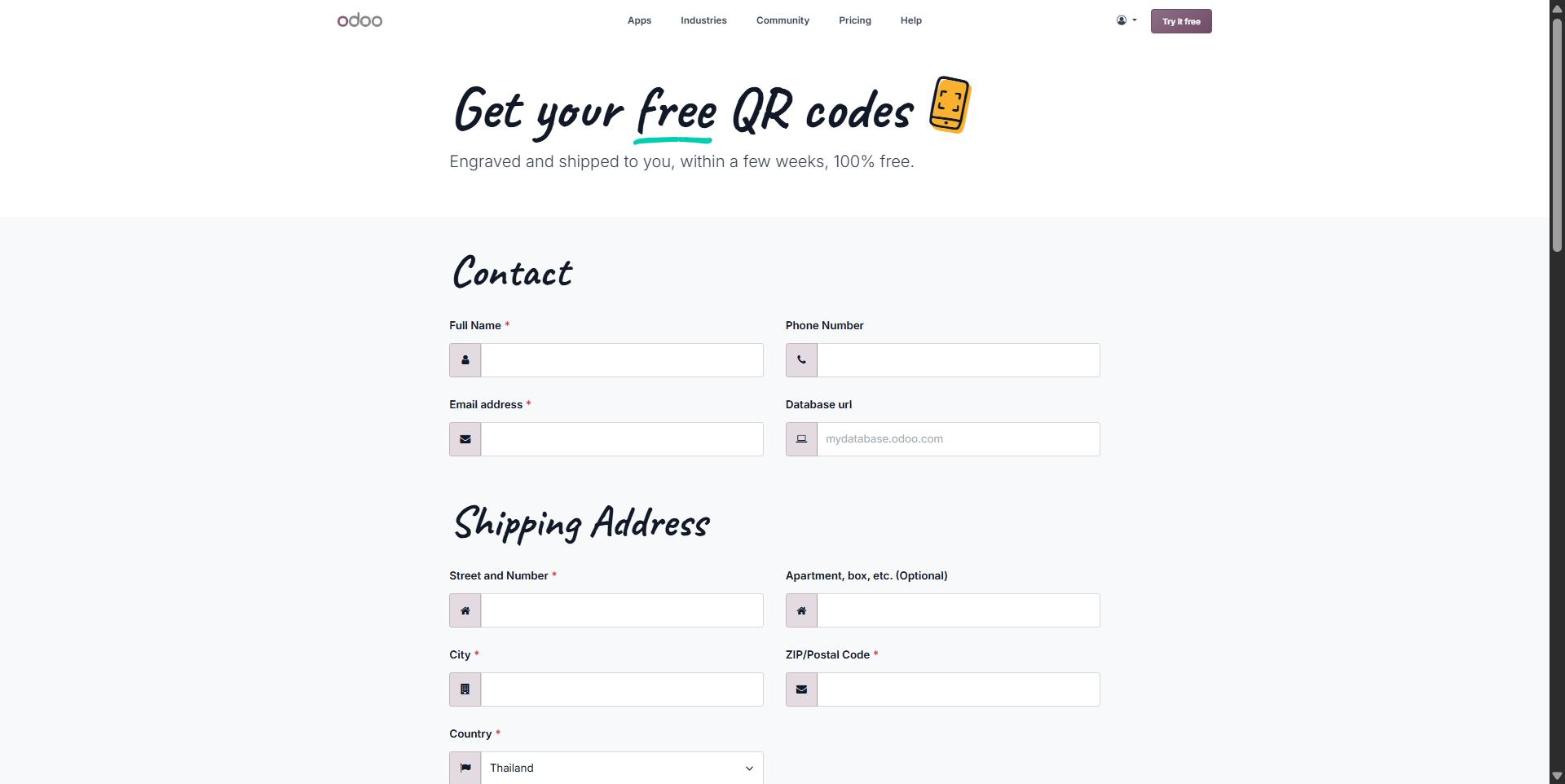
Odoo page to order free engraved QR code badges for restaurant tables
Each table gets its own QR code. When a guest scans it, Odoo already knows which table the order comes from. No table number to type, no mix-ups.
2. Table 4 orders from their phone
The guests at table 4 scan the code and choose Dine In. The menu opens on their phone, sorted by course: Starters, Mains, Desserts and Drinks. Prices are shown with VAT included.
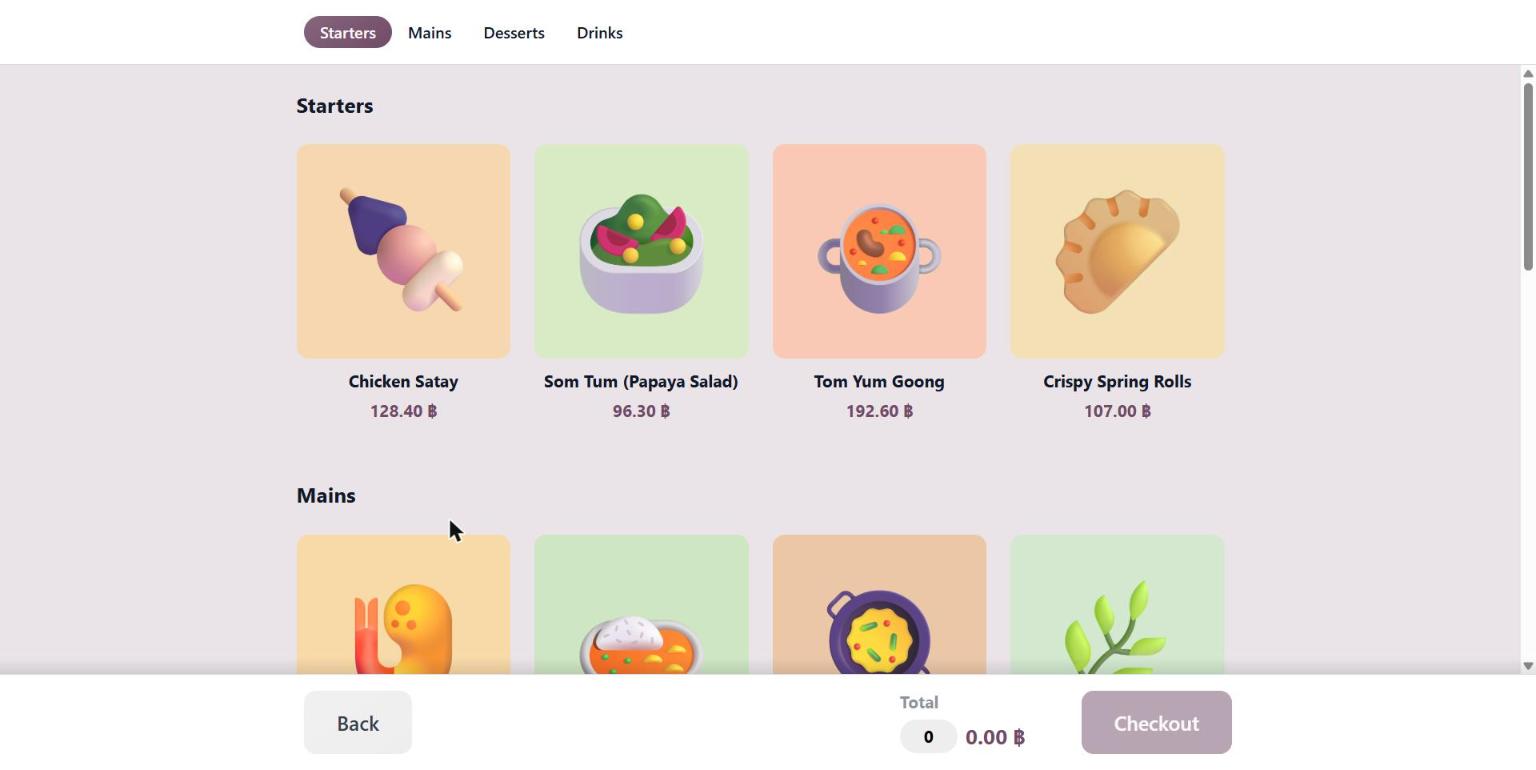
Odoo self-order menu opened from a table QR code with Thai starters and mains
They pick a Green Curry Chicken. Before it goes into the cart, Odoo suggests Jasmine Rice as an option. One tap and it’s added. They also add two Thai Iced Teas.
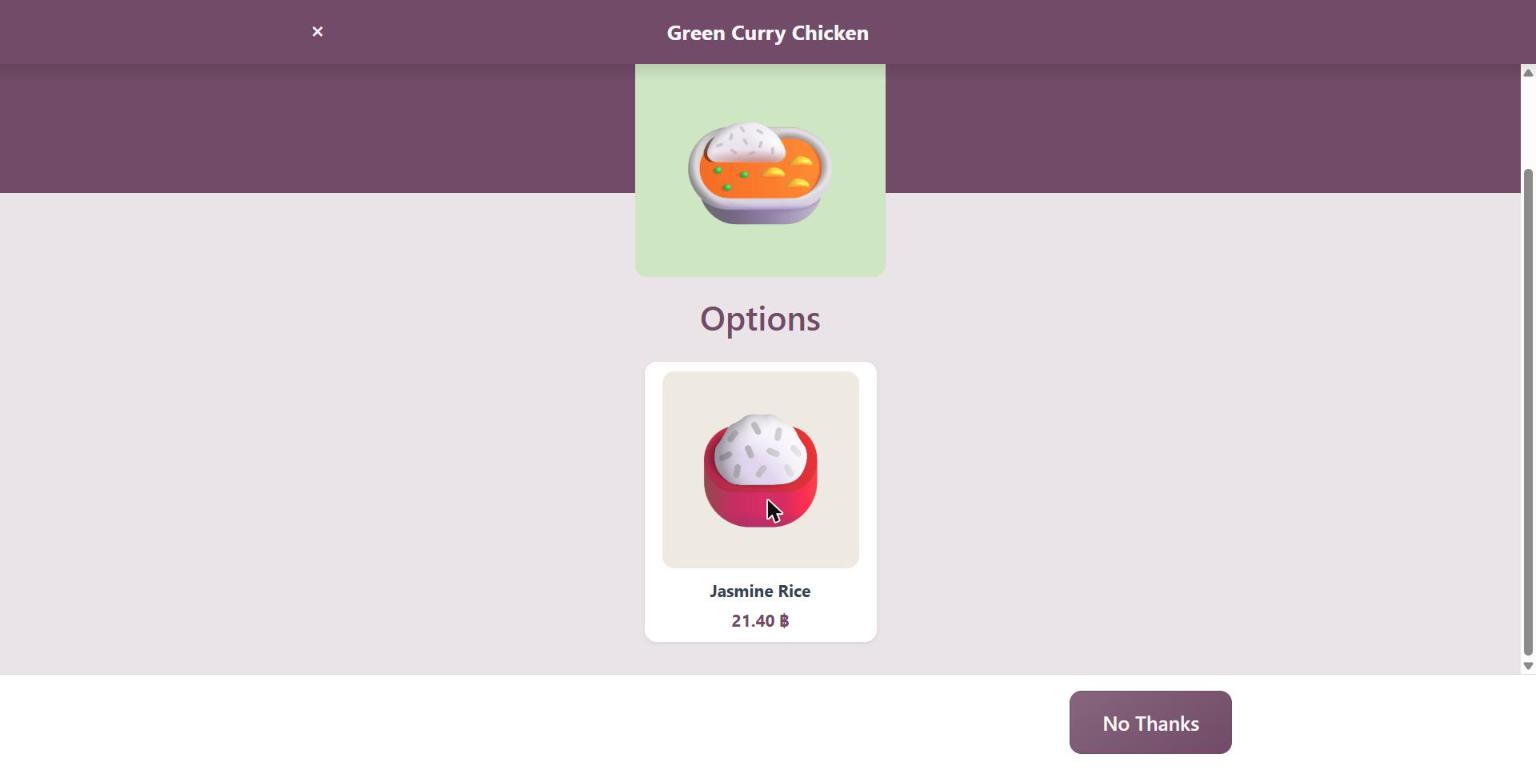
Odoo self-order suggesting jasmine rice as an optional product with green curry
New in Odoo 20, optional products are shown when guests order from a mobile phone or a kiosk. For a restaurant, it’s the digital version of the waiter asking “Rice with that?”
At checkout, the guests leave a note: “Curry mild please, no peanuts. Less ice in the tea.” Odoo also adds the restaurant’s 10% service charge automatically. Total: 341.33 ฿.
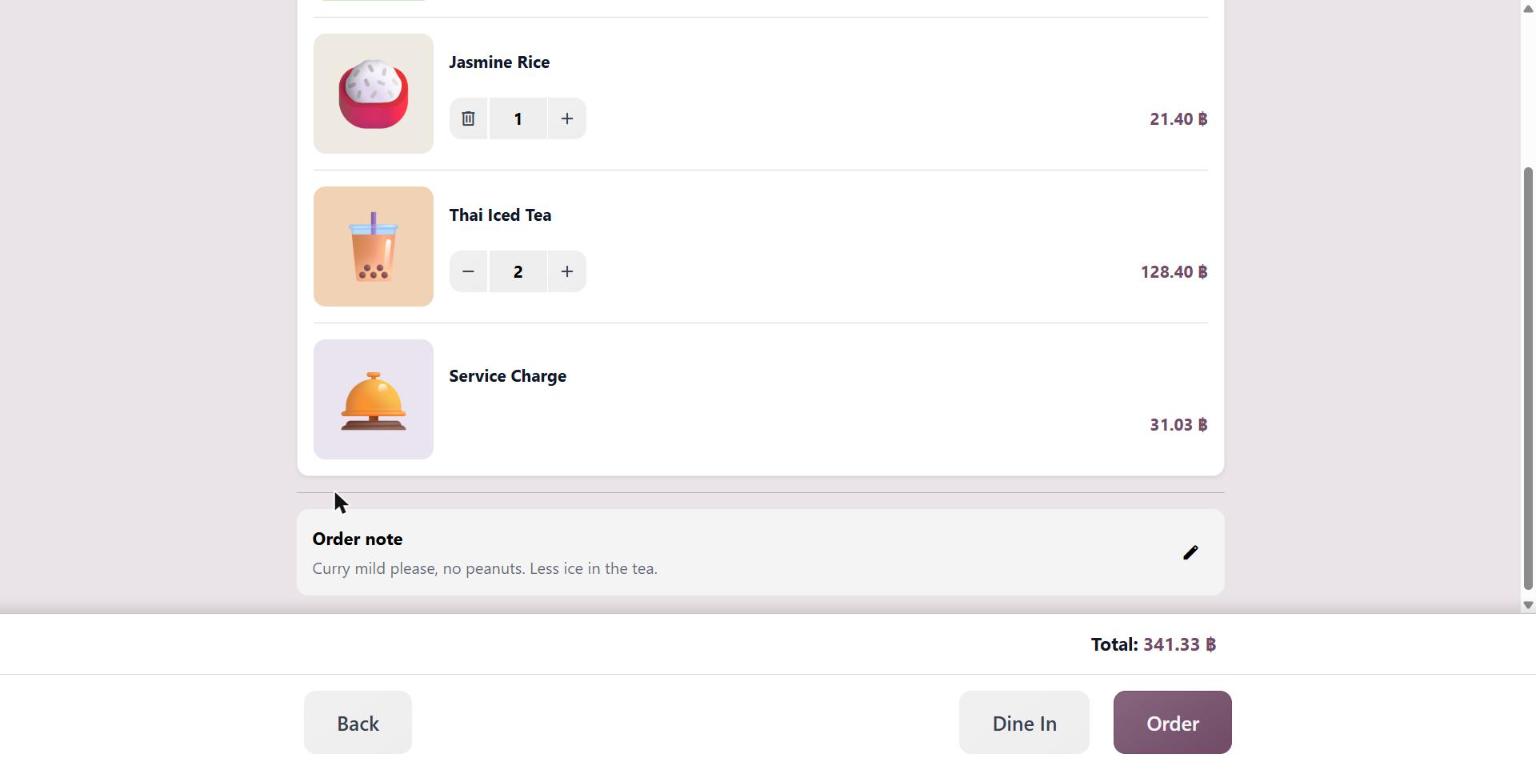
Odoo self-order cart with a 10% service charge and a customer note
Both are new in Odoo 20: guests can leave notes at self-order checkout, and a service fee can be set on a preset such as Dine In. For Thai restaurants that add 10% service on top of VAT, the charge is no longer something staff have to remember.
3. The kitchen sees the order, and the note
The order goes straight to the Kitchen display. The cooks see table T4, the curry, the rice and the guest’s note, highlighted in yellow. The iced teas don’t clutter their screen: drinks go to a separate Bar display.
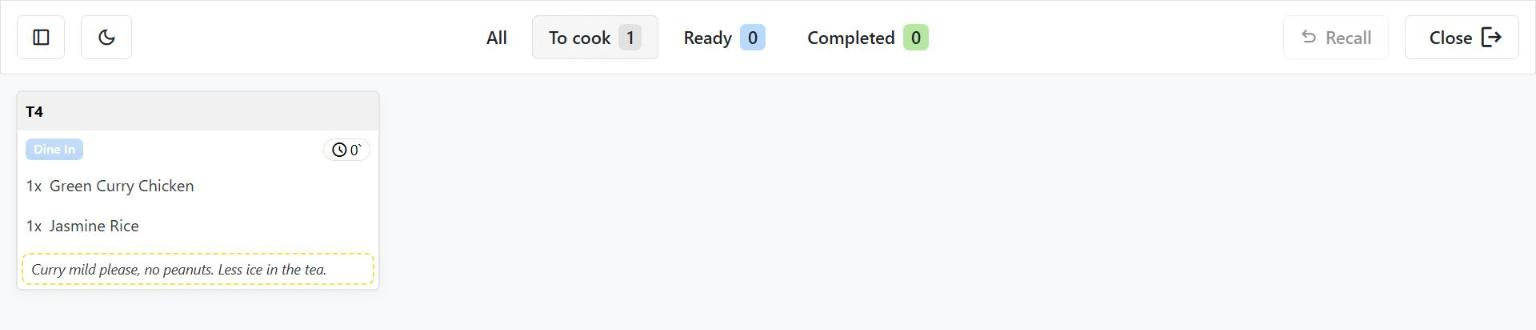
Odoo kitchen display showing table 4 order and the customer note
On the POS, the waiter sees the same order on table 4, with the same note. Nobody had to walk to the table to take it.
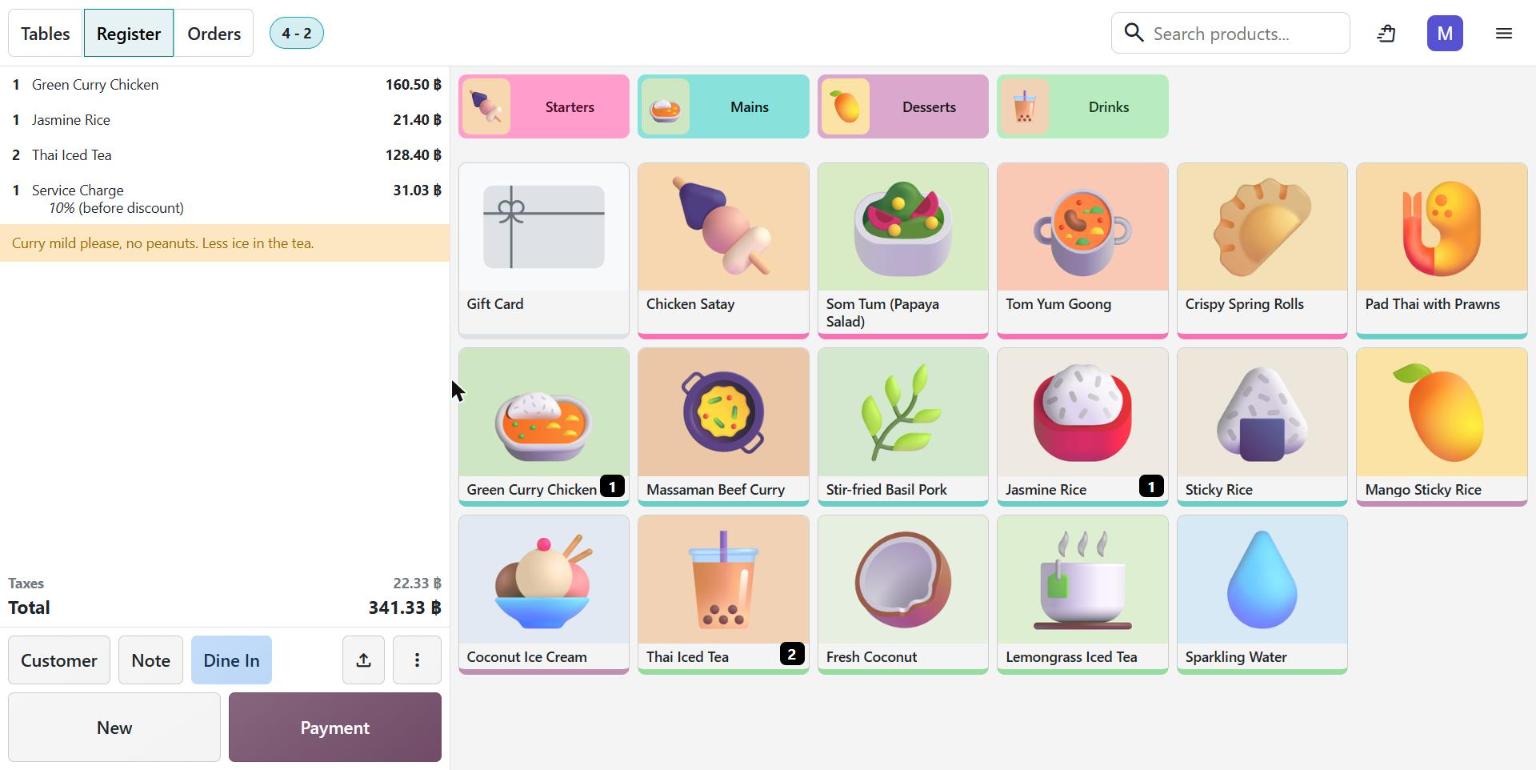
Odoo POS showing a self-order from table 4 with the customer note
4. Table 6: the waiter decides when each course goes out
Table 6 is a party of four, and they want to take their time. The waiter enters the full order on the POS: Chicken Satay and Som Tum, Massaman Beef Curry and Pad Thai, a Mango Sticky Rice and two Fresh Coconuts.
Odoo groups the lines by course on its own: Starters, Mains and Desserts. The total, with service charge and VAT, is 1,000.45 ฿.
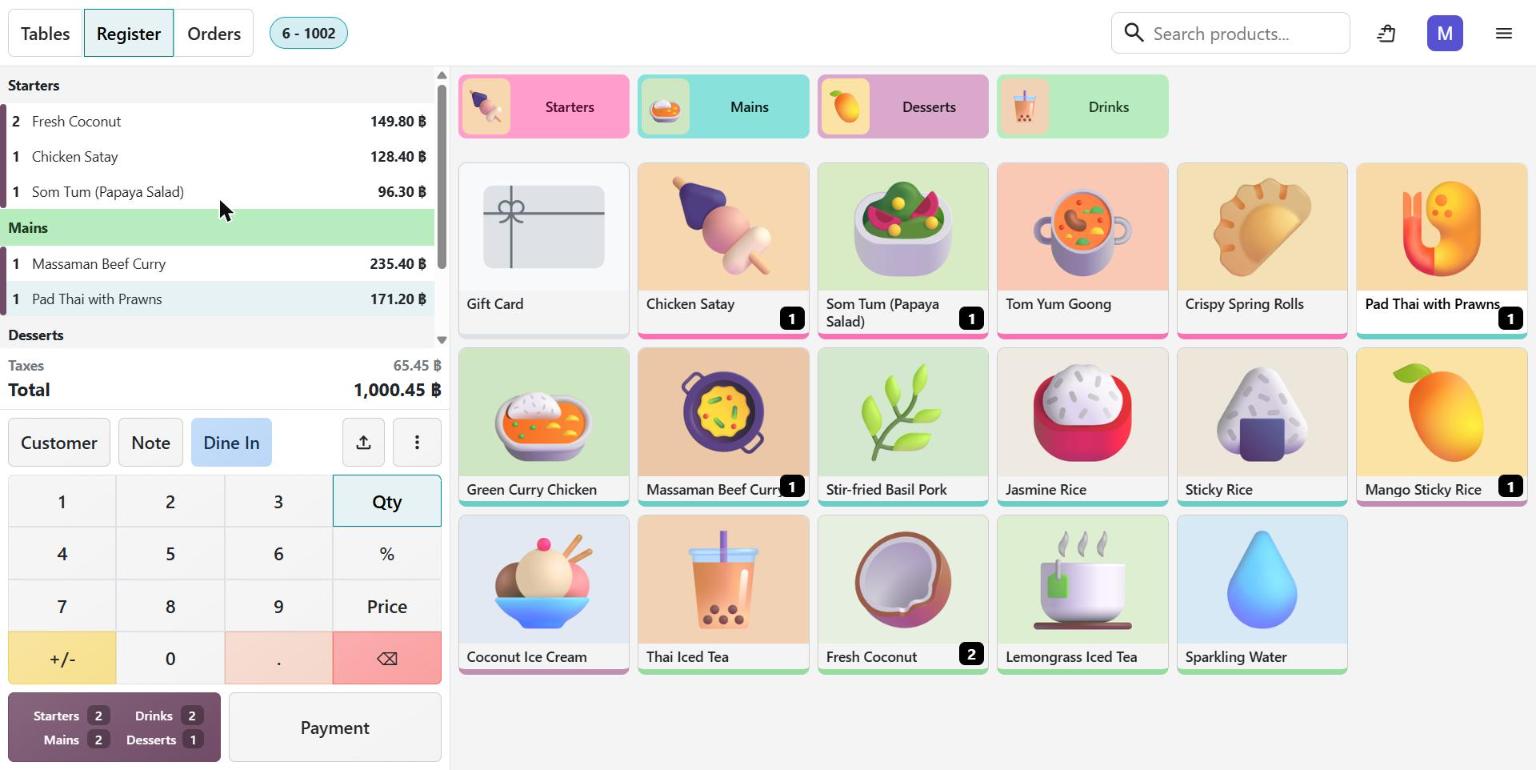
Odoo POS order grouped into starters, mains and desserts courses
When the waiter taps Send, only the starters go to the kitchen. The mains and the dessert appear on the kitchen display as Pending: the cooks know what’s coming, but they don’t start yet.
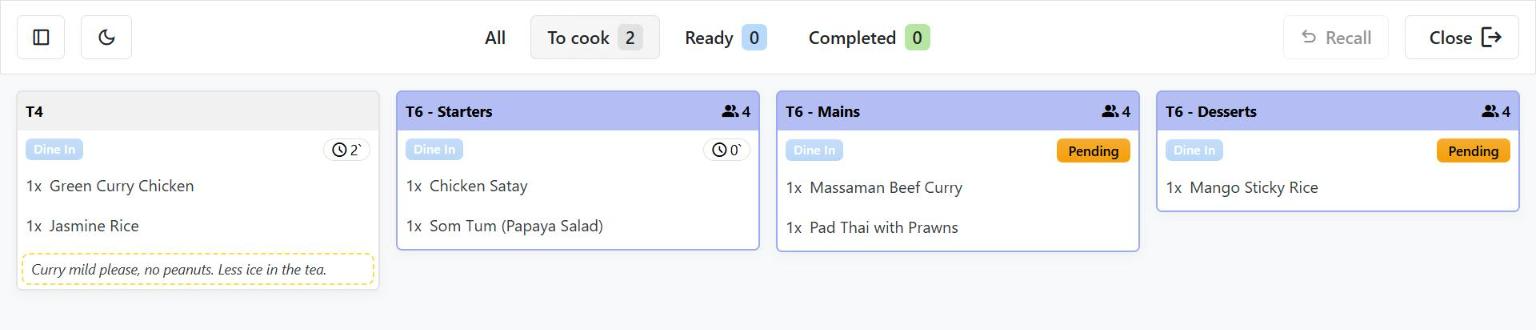
Odoo kitchen display with the starters course to cook and the next courses pending
Fifteen minutes later, the starter plates are almost empty. The waiter opens table 6. The starters are marked Fired, and the main button now reads Fire Mains.
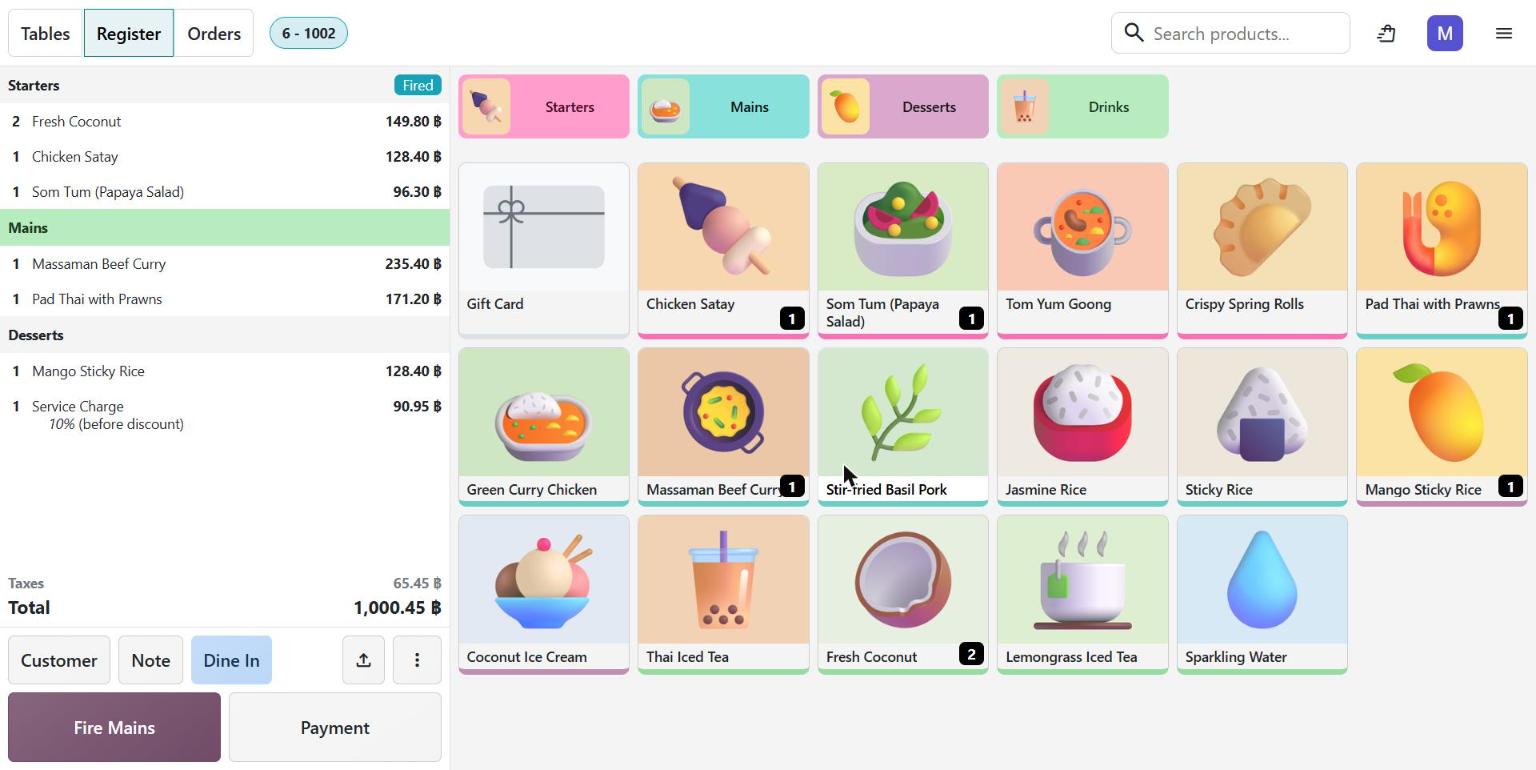
Odoo POS order with the starters fired and a Fire Mains button
One tap, and the curry and the Pad Thai move to To cook on the kitchen screen. The dessert stays pending until the waiter fires it.
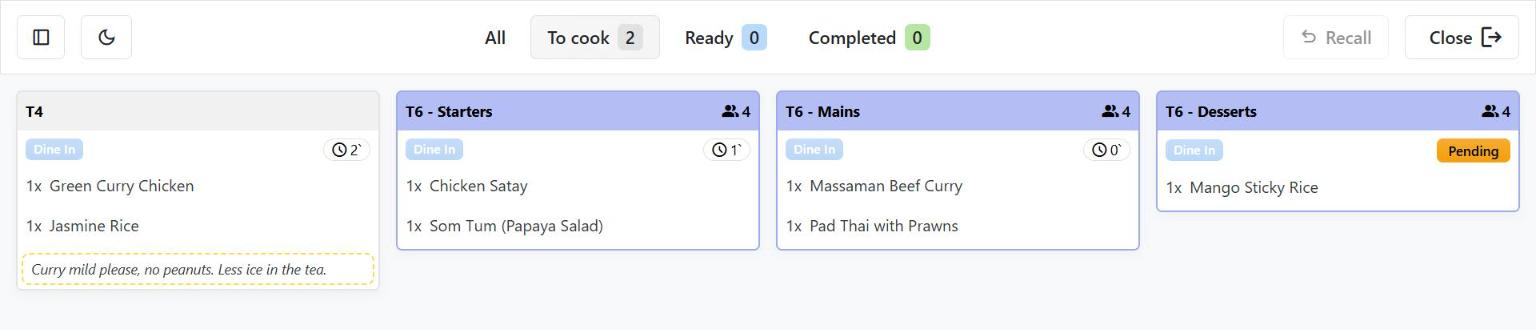
Odoo kitchen display after the mains course was fired
The waiter stays in control of the timing. The kitchen stays informed, without being rushed.
5. Guests check their bill themselves
At any time, the guests at table 4 can tap My Order on their phone. They see everything they ordered, the service charge and the total: 341.33 ฿.
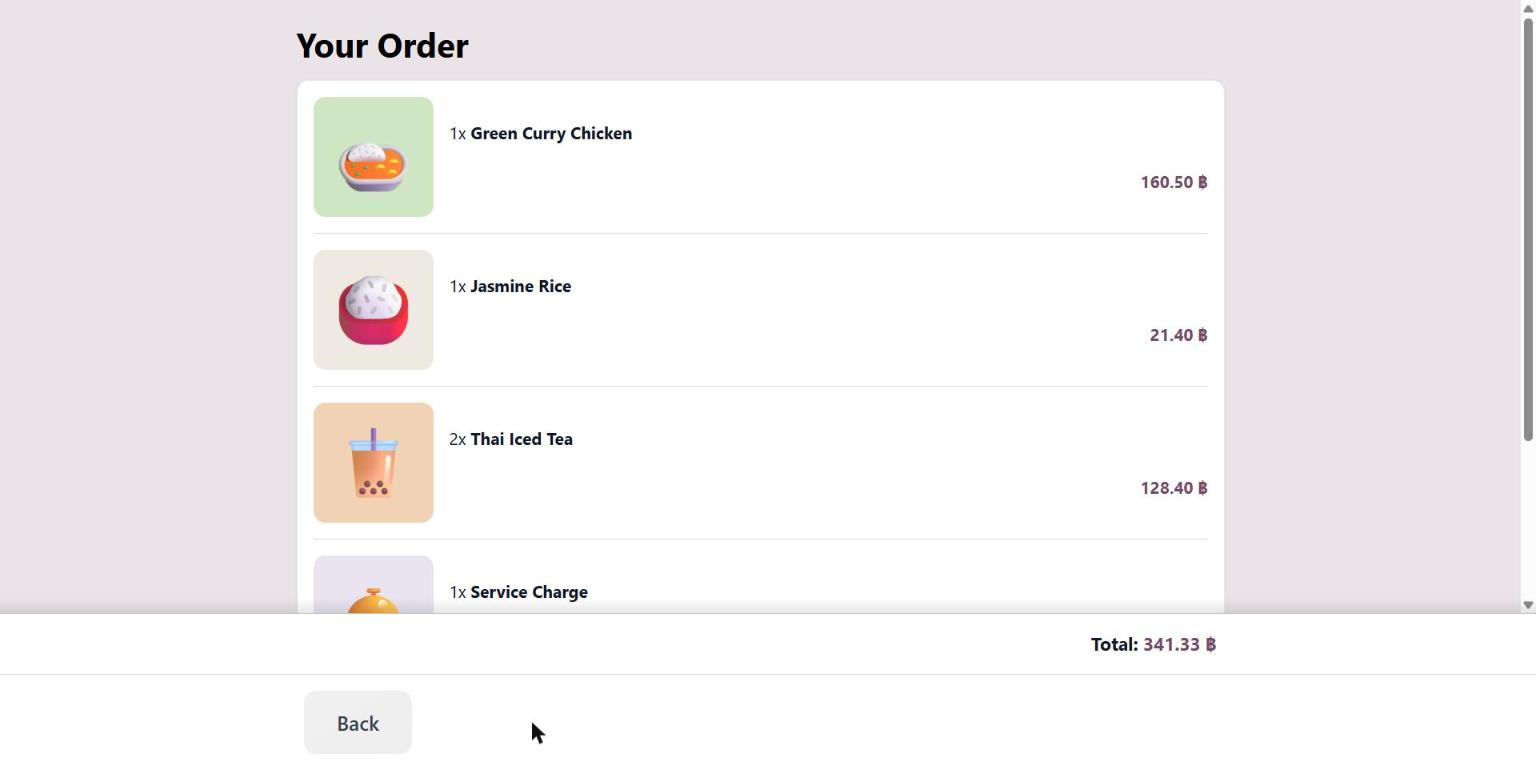
Odoo self-order page showing the bill for table 4 on the guest phone
In our demo, the waiter then took the payment at the POS. With an online payment method set up, guests can also pay from their phone. Odoo 20 adds a QR code printed for a specific order, so customers can scan it to order and pay after their meal, and guests can receive their self-order receipt by WhatsApp or SMS.
6. GrabFood orders in the same system
For many Bangkok restaurants, delivery is half the business. The Odoo 20 release notes list GrabFood order and menu sync for Thailand (available since Odoo 19).
In the POS settings, GrabFood is a provider you connect with the Client ID and Client Secret from your GrabFood merchant account. It has its own payment method and its own price list, so delivery prices can differ from your dine-in menu.
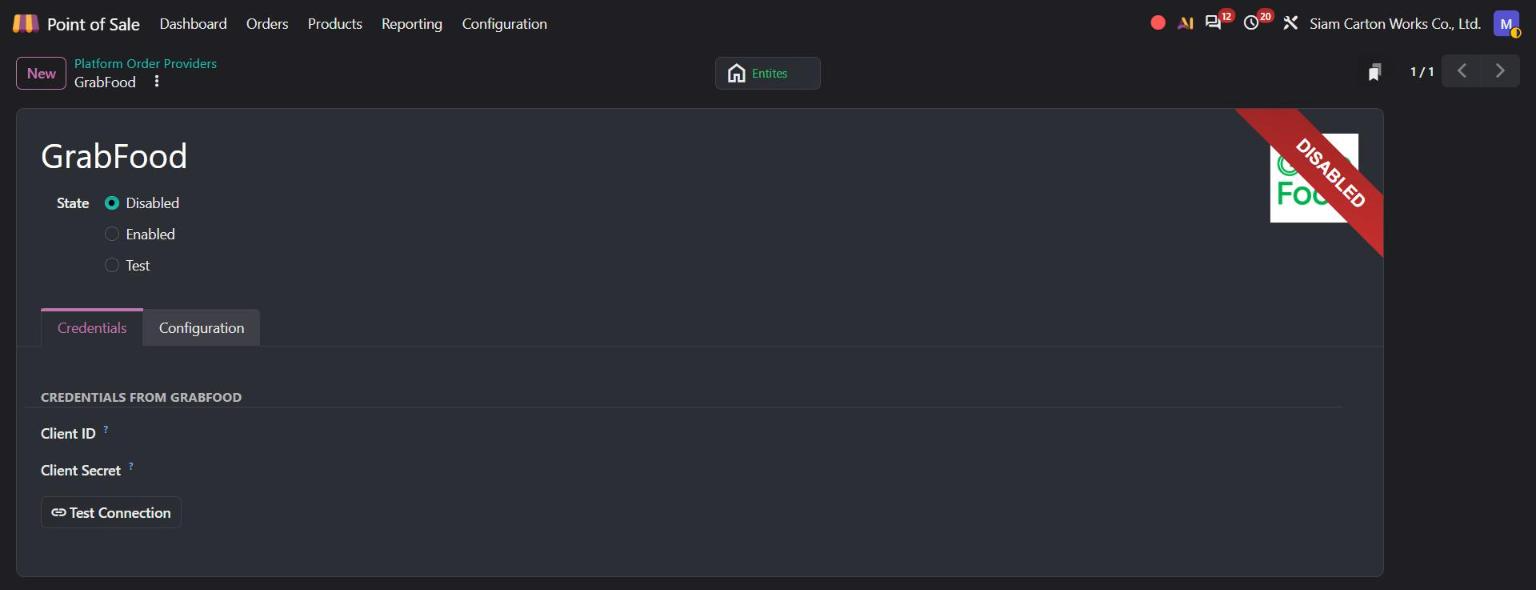
Odoo GrabFood provider form with client ID and client secret fields
Once connected, delivery orders arrive in the POS with your dine-in orders, instead of on a separate tablet.
A few more Odoo 20 details restaurants will like
- Snooze products: a dish is sold out? Make it unavailable on the POS and the self-order menu for a while.
- One preparation ticket per product, if your kitchen works station by station.
- Simpler closing: at the end of the session, Odoo creates one global sale for accounting.
What this means for your restaurant
- QR codes on every table: guests order when they’re ready, not when a waiter is free.
- Optional products and notes: fewer forgotten sides, fewer “no peanuts” mistakes.
- Courses you fire yourself: the kitchen knows what’s coming, and cooks it when the table is ready.
- Service charge added for you: the 10% is on every dine-in bill, with VAT.
- GrabFood in the same POS: delivery and dine-in orders in one place.
And because it’s Odoo, every sale lands in your inventory and accounting without typing anything twice.
Want to see it with your own menu?
At Stenas Digital, we help Thai restaurants, cafés and food businesses set up Odoo around the way they actually work: your floor plan, your menu, your kitchen. We handle implementation, Thai accounting and support, in Thai and English.
Book a free demo with our team: Hello@stenasdigital.com