
Send it from Odoo. Read on LINE.
In Thailand, customers check LINE far more often than email. Yet Odoo sends quotations, invoices, purchase orders and reminders by email. The document goes out, nobody reads it, and the cash or the confirmation arrives late.
56 million LINE users in Thailand, according to LINE Thailand (source). For most Thai SMEs, it is the first channel customers and suppliers open.
The Stenas Digital LINE Integration Module connects your LINE Official Account to Odoo and adds a Send LINE button where your team already works. It covers five workflows:
- Template messages: send invoices, bills, quotations, sales orders, RFQs and purchase orders on LINE, with names, amounts and portal links filled in.
- Calendar invitations: invite attendees on LINE. They accept or decline from their phone, and Odoo updates their status.
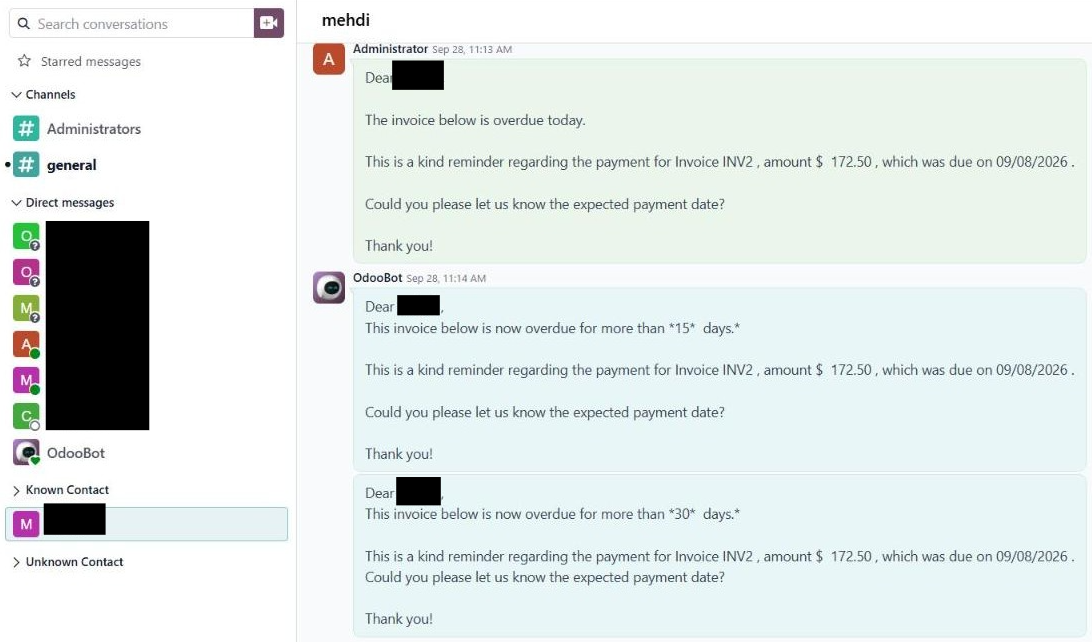
- Payment follow-ups: reminders at the due date, +15 and +30 days go out on LINE automatically.
- Opportunities from LINE chats: turn a LINE conversation into a CRM opportunity in one click, with the chat history copied in and no duplicates per company.
- Planning × Field Service: send shifts and assigned tasks to technicians on LINE, even if they have no Odoo user.
Every LINE message is logged in the Odoo record's chatter, so your team always knows what was sent, to whom and when.
How it works
The module runs on the official LINE Messaging API and inside standard Odoo apps, on desktop and mobile. The workflow has four steps:
- Connect: the customer adds your LINE Official Account. Odoo creates a LINE Contact.
- Link: link the LINE user to the Odoo contact, once, from Contacts or Discuss.
- Send: click Send LINE on a document or meeting, or let the follow-up schedule send it.
- Track: the customer opens the link or replies to the invitation. The message and the answer are logged in Odoo.
One-time setup
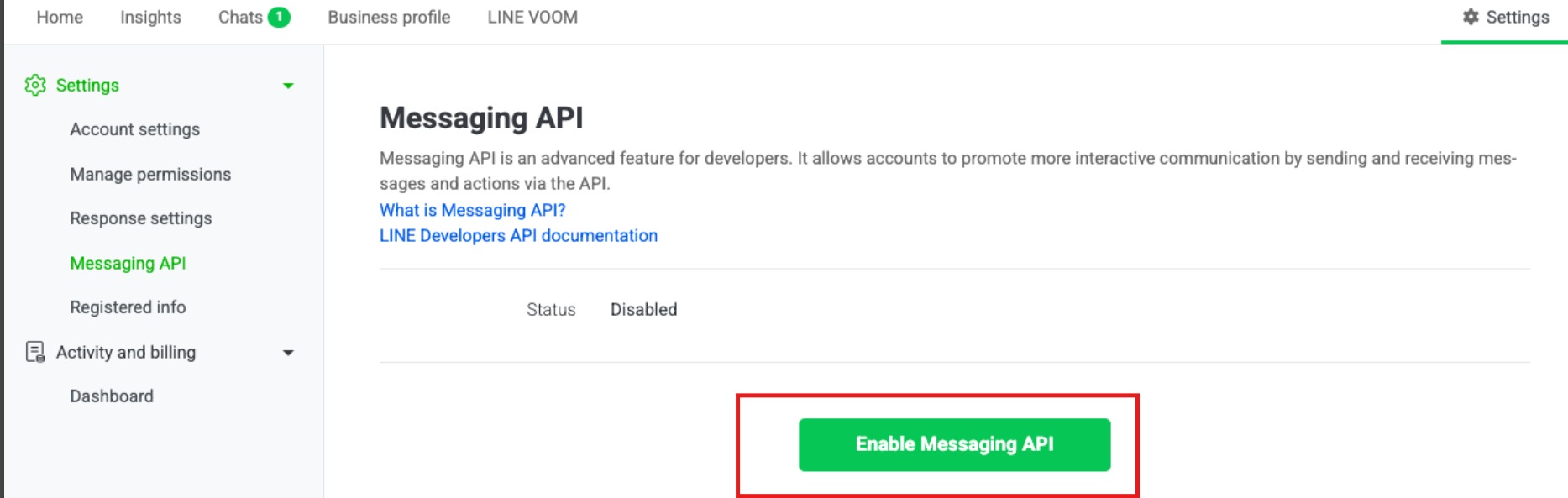
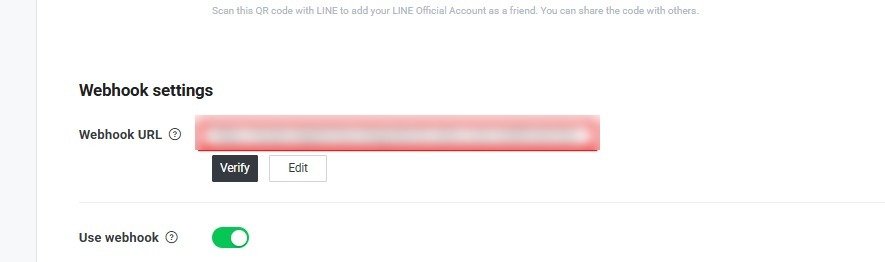
LINE side. Enable the Messaging API on your LINE Official Account. Then set the Odoo webhook (your-odoo-url/webhook/line) in the LINE Developers console and verify it.
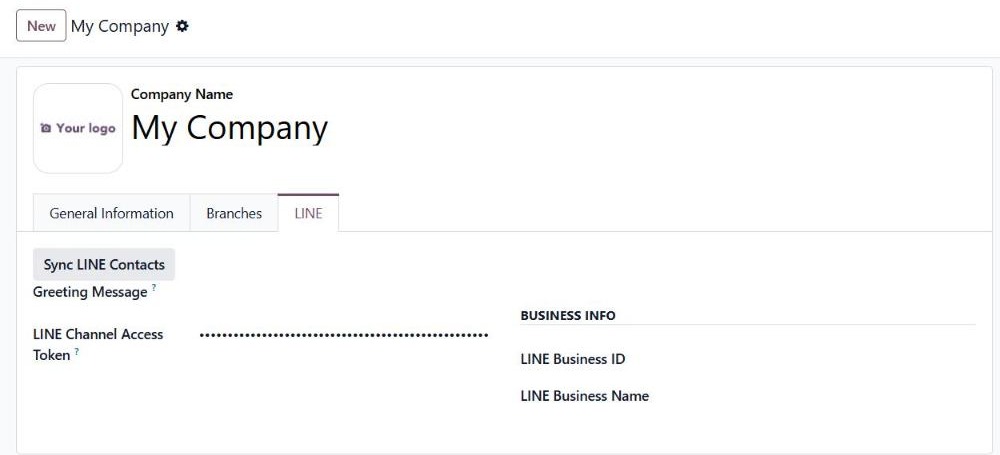
Odoo side. Install the LINE modules for the apps you use. Paste the channel access token in the company's LINE tab, where it is stored masked.
Contacts. Each LINE user is linked once to an Odoo contact. The contact then shows a green Linked button and can receive LINE messages.

Feature 1 — Template messages: send any document on LINE
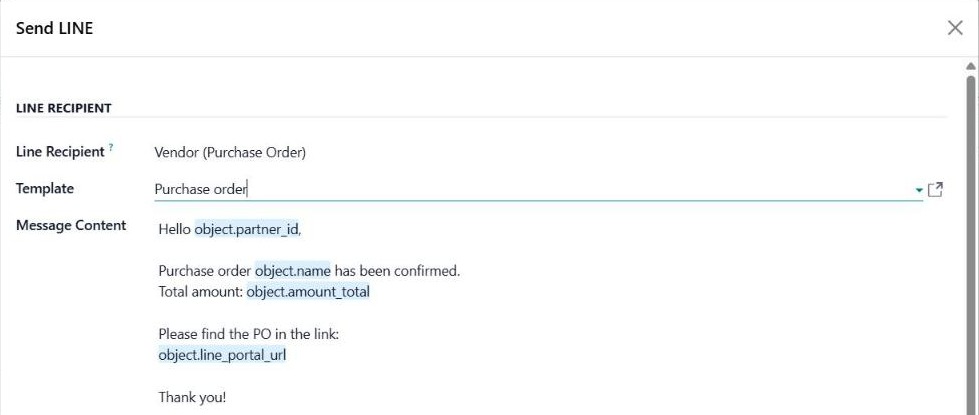
Open the record, click Send LINE, then choose the recipient and the template. The message fills in the customer's name, the document number, the amount and a link to the document on your customer portal.
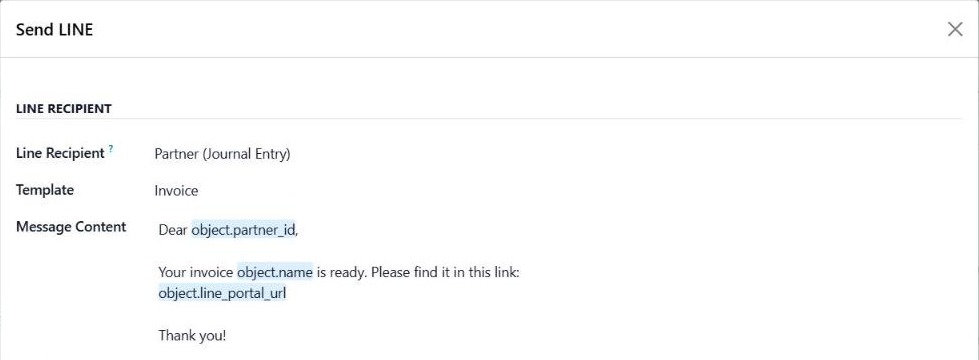
Where you'll find Send LINE
App | Template | What the recipient receives |
|---|---|---|
Accounting | Invoice · Bill | Invoice or bill number and a portal link to view and pay |
Sales | Quotation created · Sale order | Quotation or order number, total and portal link |
Purchase | RFQ created · Purchase order | RFQ or PO number, total, expected arrival and portal link |
Calendar | Meeting | The attendees , meeting link invitation |
Templates you can adapt in minutes
The module comes with 13 ready-to-use templates. Change the wording, write Thai and English versions, or create new ones. In the message, type "/" to insert a dynamic field.
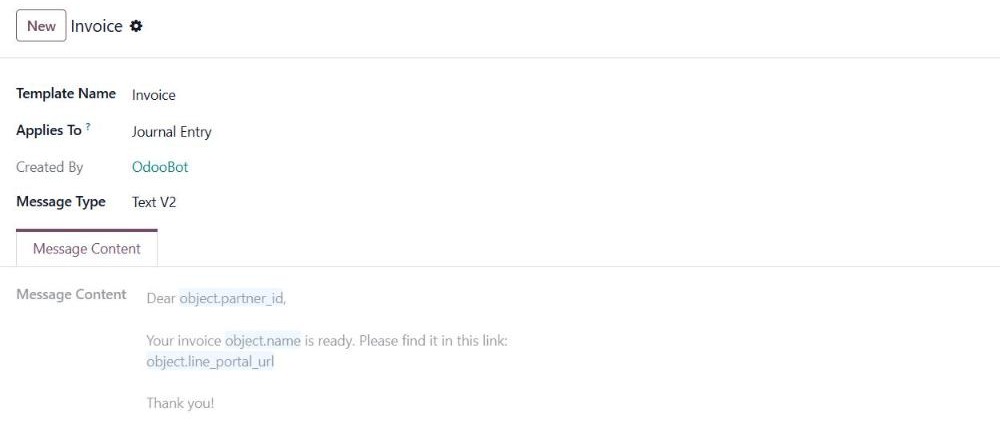
Examples of dynamic fields :
Dynamic field | Inserts |
|---|---|
object.partner_id | Customer or vendor name |
object.name | Document number (invoice, quotation, PO, meeting subject) |
object.amount_total | Total amount including tax |
object.invoice_date_due | Due date |
object.line_portal_url | Link to view, sign or pay the document on your portal |
Example: a purchase order to a supplier
Many Thai suppliers coordinate only on LINE. Validate the RFQ, click Send LINE and pick Purchase order. The supplier gets the PO number, total and link, and the message is logged on the PO.
Feature 2 — Calendar invitations with live RSVP
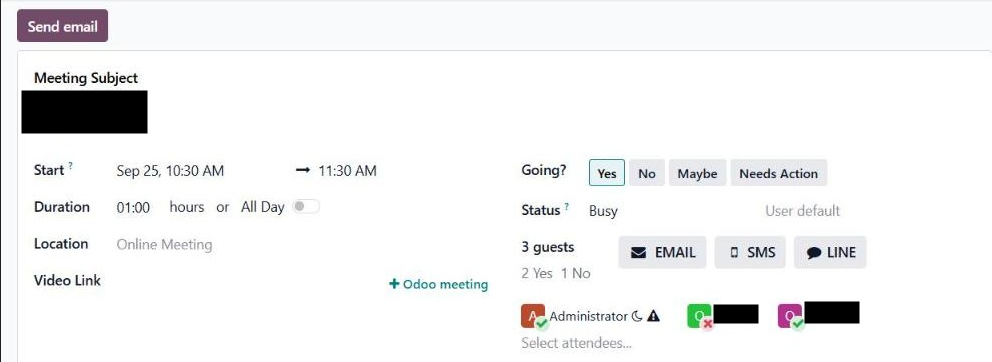
Send meeting invitations on LINE to customers, partners or staff, with or without an Odoo account. You see who's coming without chasing anyone.
How it works
- Create the meeting and select attendees who are linked to LINE.
- Click LINE. Each attendee receives the subject, date and time, duration, location or video link, the organizer, and a personal link to the meeting.
- The attendee taps Accept or Decline on their phone. No login needed.
- Odoo updates the attendee status (green tick or red cross) and logs the answer in the meeting's chatter.
Good for: Supplier meetings, training sessions and internal meetings with staff who don't use Odoo.
Feature 3 — Payment follow-ups that actually get read
Overdue invoices are where LINE pays for itself. A reminder in LINE is hard to miss, and it arrives exactly when Odoo's follow-up schedule says it should.
Automatic follow-ups
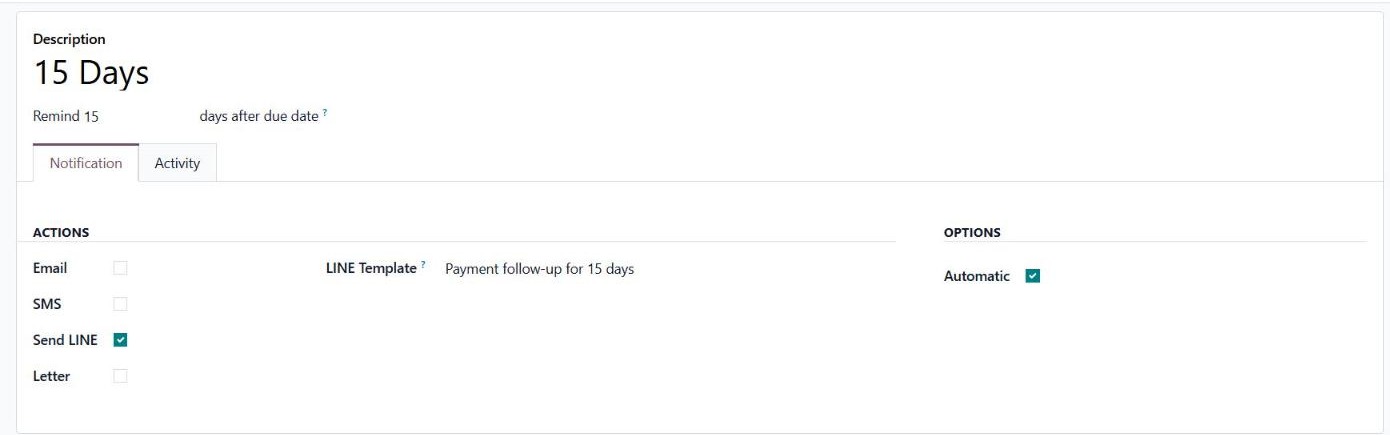
On each follow-up level (on the due date, after 15 days, after 30 days), tick Send LINE and Automatic and pick the matching LINE template. Odoo's scheduled follow-up then sends each reminder on LINE with the invoice number, the amount still due, the due date and a link to pay.
Manual follow-ups
Need to nudge one customer today? Send the follow-up manually from the customer's statement and tick the LINE option.
Feature 4 — Opportunities from LINE conversations
Many Thai B2B deals start with a simple "can you send me a price?" on LINE. With the module, that message ends up in your CRM pipeline instead of staying on someone's phone.
Create an opportunity from the chat
LINE chats arrive in Odoo Discuss. Once the LINE user is linked to an Odoo contact, one click on the conversation creates a CRM opportunity. If you have already been chatting, the whole LINE conversation is copied into the opportunity, so whoever picks up the lead has the full context. Open LINE Chat on the opportunity takes you back to the conversation.

No duplicate opportunities per company
Several people from the same company often contact you separately. When a second contact from that company starts a new opportunity, Odoo reminds you that one already exists and lets you:
- Link the chat to the existing opportunity instead of creating a new one.
- Carry the conversation over into the existing opportunity's chatter.
- Open the existing opportunity straight from the warning.
Result: one clean opportunity per company, the full LINE history in the CRM, and managers see every lead, not only the ones that came in by email.
Feature 5 — Planning × Field Service on LINE
Your on-site team (technicians, installers, drivers) often has no Odoo account, but everyone has LINE. The module sends them their schedule and their jobs there.
Send shifts to your team
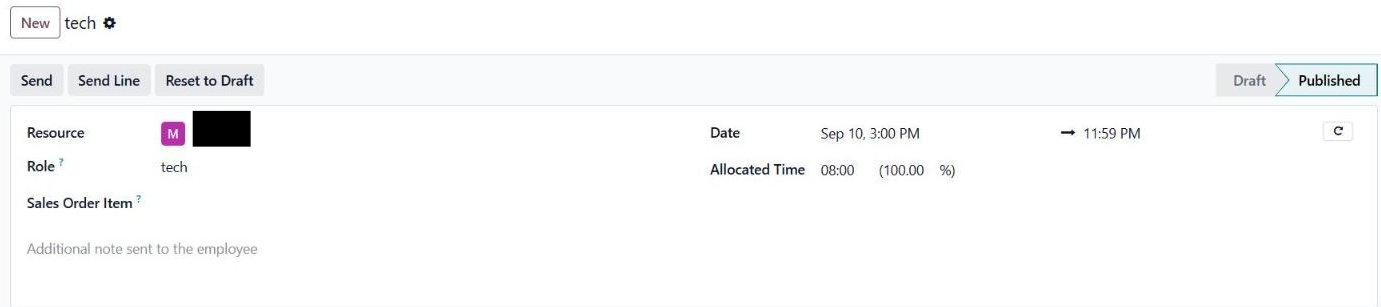
Path: Planning › New shift › select the resource (linked to LINE) › Send Line
The manager plans the shift as usual in Odoo Planning and clicks Send Line. The employee receives the shift on LINE with a preview link to check their planning. No Odoo login needed.
Send field service tasks
When a task is assigned, the Task assigned template sends the technician everything they need for the job:
Included in the message | Why it matters on site |
|---|---|
Task title and project | The technician knows which job it is |
Customer and customer phone number | They can call ahead or on arrival |
Deadline | They know when it has to be done |
Link that opens the task | Job details in one tap |
Good for: maintenance and installation companies, service teams and subcontractors who coordinate on LINE today with screenshots and copy-paste.
At a glance
Feature | What it does | Where |
|---|---|---|
Template messages | Send invoices, bills, quotations, sales orders, RFQs and POs on LINE with dynamic fields, a portal link and an optional CC | Send LINE on the record · LINE › Configuration › LINE Templates |
Calendar | LINE meeting invitations; attendees accept or decline and Odoo updates their status | Calendar › meeting › LINE |
Follow-up | Automatic reminders and manual follow-ups on demand | Accounting › Configuration › Follow-up Levels |
Opportunity | Create a CRM opportunity from a LINE chat with the conversation copied in; link to the company's existing opportunity instead of duplicating | Discuss › LINE conversation |
Planning × Field Service | Send shifts and assigned tasks to staff on LINE, with a preview or task link, no Odoo user needed | Planning › Send Line · Project task |