
It's Monday, 8:30, at the Siam Carton Works box plant in Bangkok. The weekly production meeting starts in half an hour. Last Thursday night, Corrugator 1 stopped for 3 hours and 40 minutes because the glue was too thick at start-up. A customer, FreshPack Foods, received 120 crushed boxes out of an order of 2,000. And two night-shift reels went through with board moisture at 11–12%, well above the plant's 9% limit.
Nobody did anything wrong on purpose. The day shift and the night shift simply start the line in different ways. The procedure lives in a binder, in a LINE group and in the head of the most experienced operator.
Odoo Knowledge fixes this with two simple tools: templates, so every meeting starts from the same page, and foldable sections, so a long SOP stays short until you need the detail. Odoo 20 adds a smaller helper on top: article settings in one right-click. We set all of this up in an Odoo 20 demo database for Siam Carton Works. Here's how it went.
1. Start every production meeting from the same page
Odoo Knowledge comes with a gallery of ready-made templates. In our database we found 15 of them, in five groups: Productivity, Sales, Marketing, Company Organization and Product Management. Meeting Minutes, HR FAQ, Post-mortem and Release Notes are all there.
The plant manager clicks Templates at the bottom of the sidebar, selects Meeting Minutes and clicks Load Template.
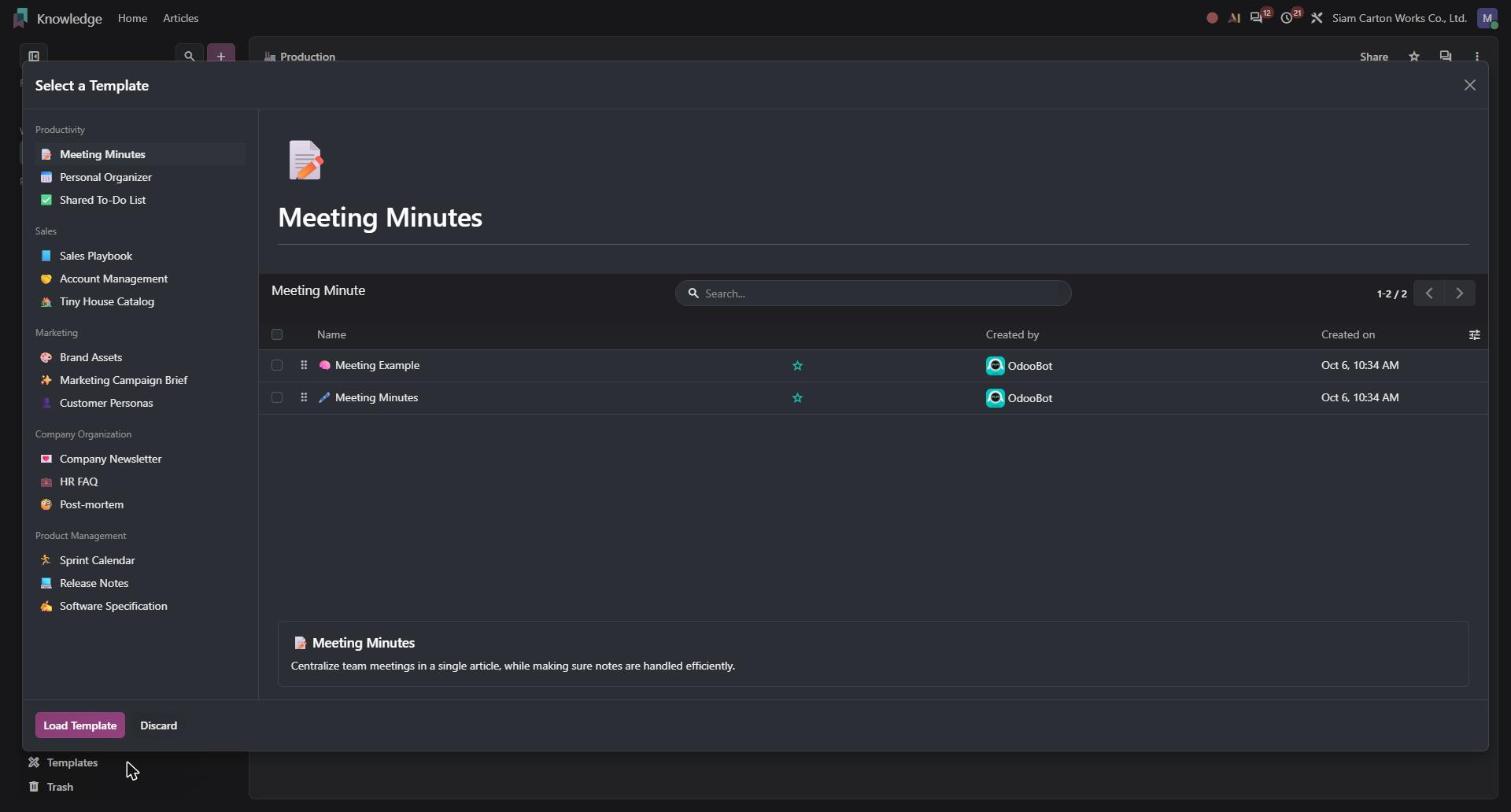
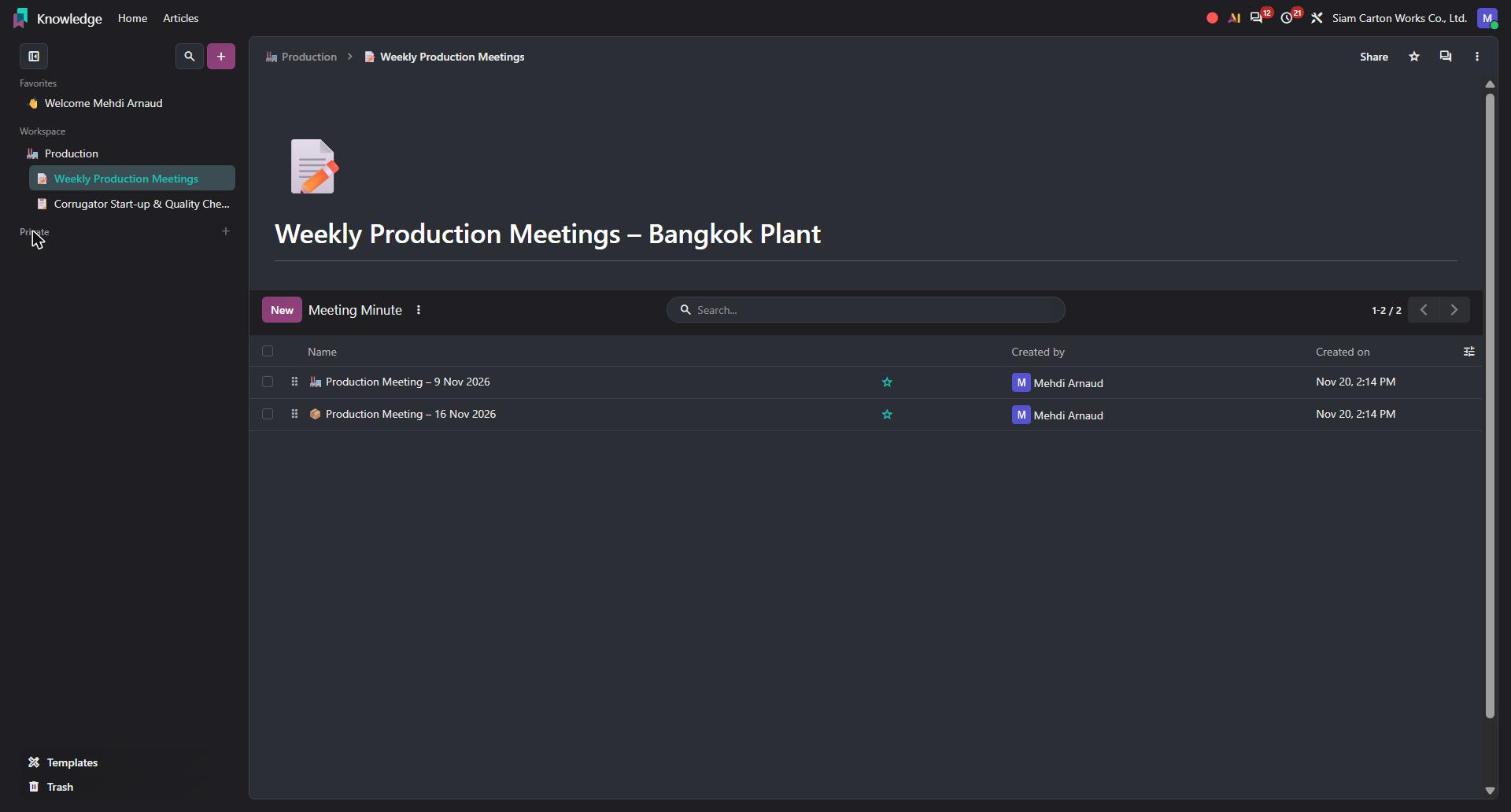
Odoo creates a meeting page with a built-in list of meetings. He renames it "Weekly Production Meetings – Bangkok Plant" and places it under a Production article in the shared Workspace, so every supervisor can find it. Each new meeting is one click on New.
2. Agenda on the left, decisions on the right
Every meeting page has the same layout: what to prepare, the agenda, the decisions taken and the date of the next meeting. For 16 November, the team prepares the Corrugator 1 downtime log, the FreshPack Foods complaint and the week's moisture readings.
Four topics lead to four decisions. Write one Corrugator Start-up & Quality Check SOP for both shifts. Check glue viscosity and board moisture at start-up and every 2 hours. Hold any reel above 9% moisture until QC releases it. Run a box compression test on the first boxes of every new order. The next meeting is already set for 23 November.
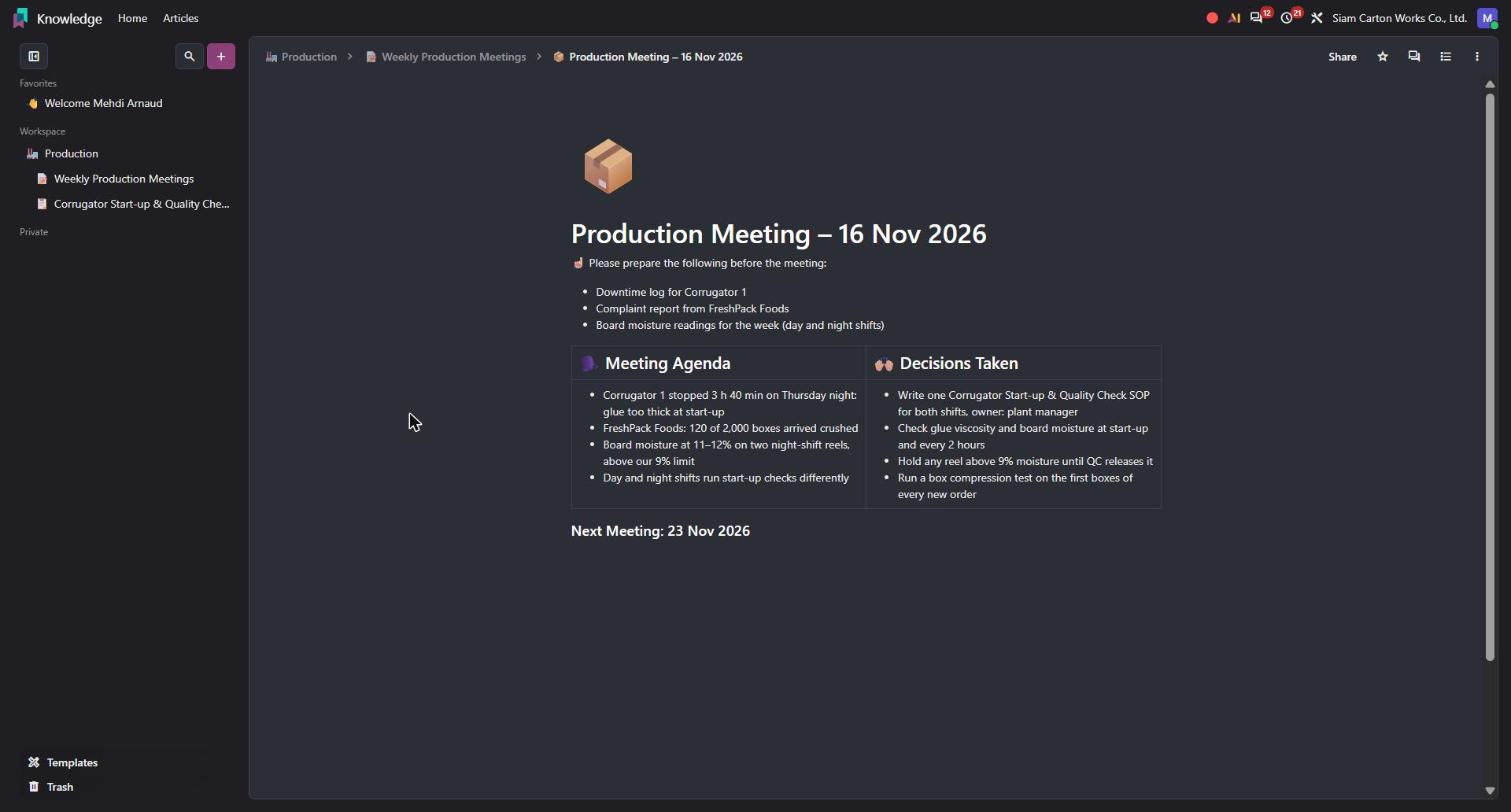
The table itself isn't the point. The point is that every supervisor finds the decisions in the same place, in the same format, every week. When someone asks "what did we decide about wet reels?", the answer is one search away.
3. Write the SOP once, for both shifts
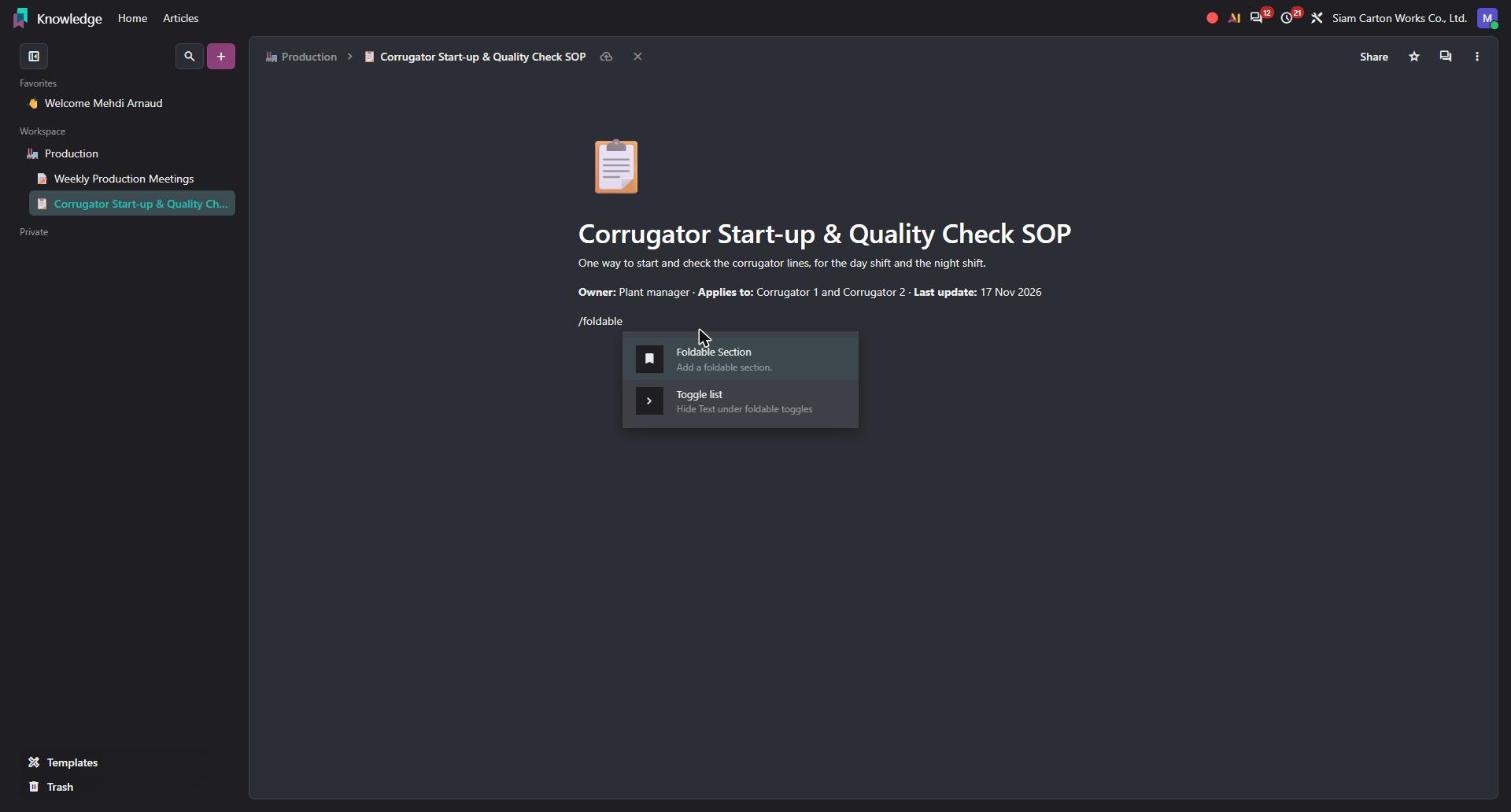
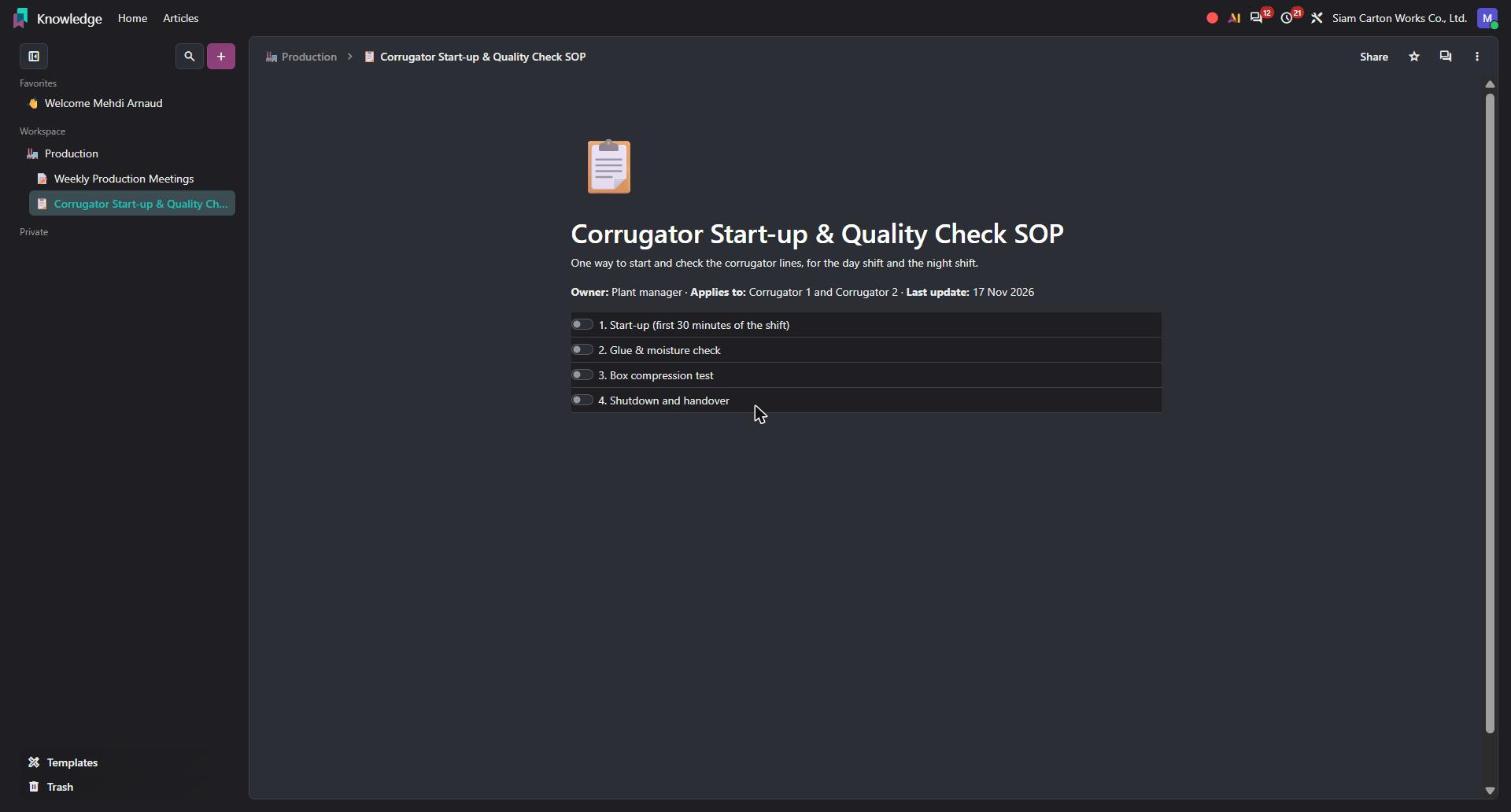
The plant manager creates the SOP under Production, with a short intro: who owns it, which lines it applies to, and when it was last updated. Then he types /foldable in the editor. Odoo offers two options: a Foldable Section and a Toggle list.
He adds four sections, one for each moment of the shift:
- Start-up (first 30 minutes of the shift)
- Glue & moisture check
- Box compression test
- Shutdown and handover
4. Fold and unfold: an SOP that fits on one screen
This is where foldable sections earn their place. Folded, the whole SOP fits on one screen: the intro and four lines. Nobody has to scroll through a binder to find the part they need.
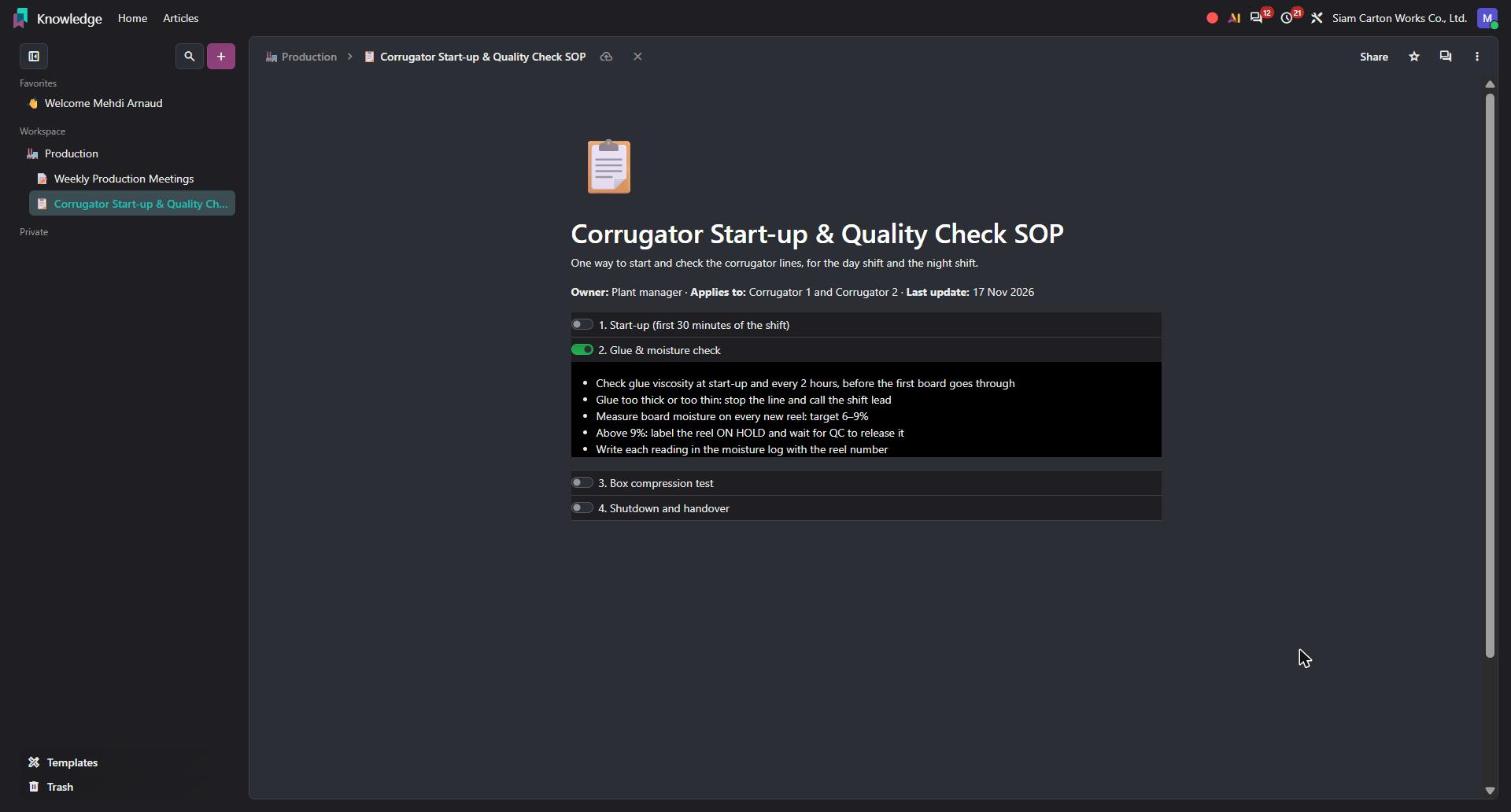
A new reel arrives at 2:00 in the morning. The night-shift lead switches on Glue & moisture check and sees only what matters right now: check glue viscosity before the first board goes through, measure moisture on every new reel with a 6–9% target, and above 9% label the reel ON HOLD and wait for QC.
The same goes for the Box compression test: three boxes from the first run of every new order, compared with the customer specification, and the order stopped if they fall below it. That's the rule that should have caught the FreshPack Foods problem before the boxes left the plant.
5. New in Odoo 20: article settings in one right-click
With the SOP written, the plant manager wants to share it with the shift leads and keep it in his favorites. In Odoo 20 he doesn't need to open the article first. The official Odoo 20 release notes put it simply: right-click on an article in the sidebar tree to change its settings.
A right-click on the SOP in the sidebar opens Open in new tab, Add to Favorite, Share, Rename, Move To, Create a Copy and Send to Trash, plus who last edited the article and when.
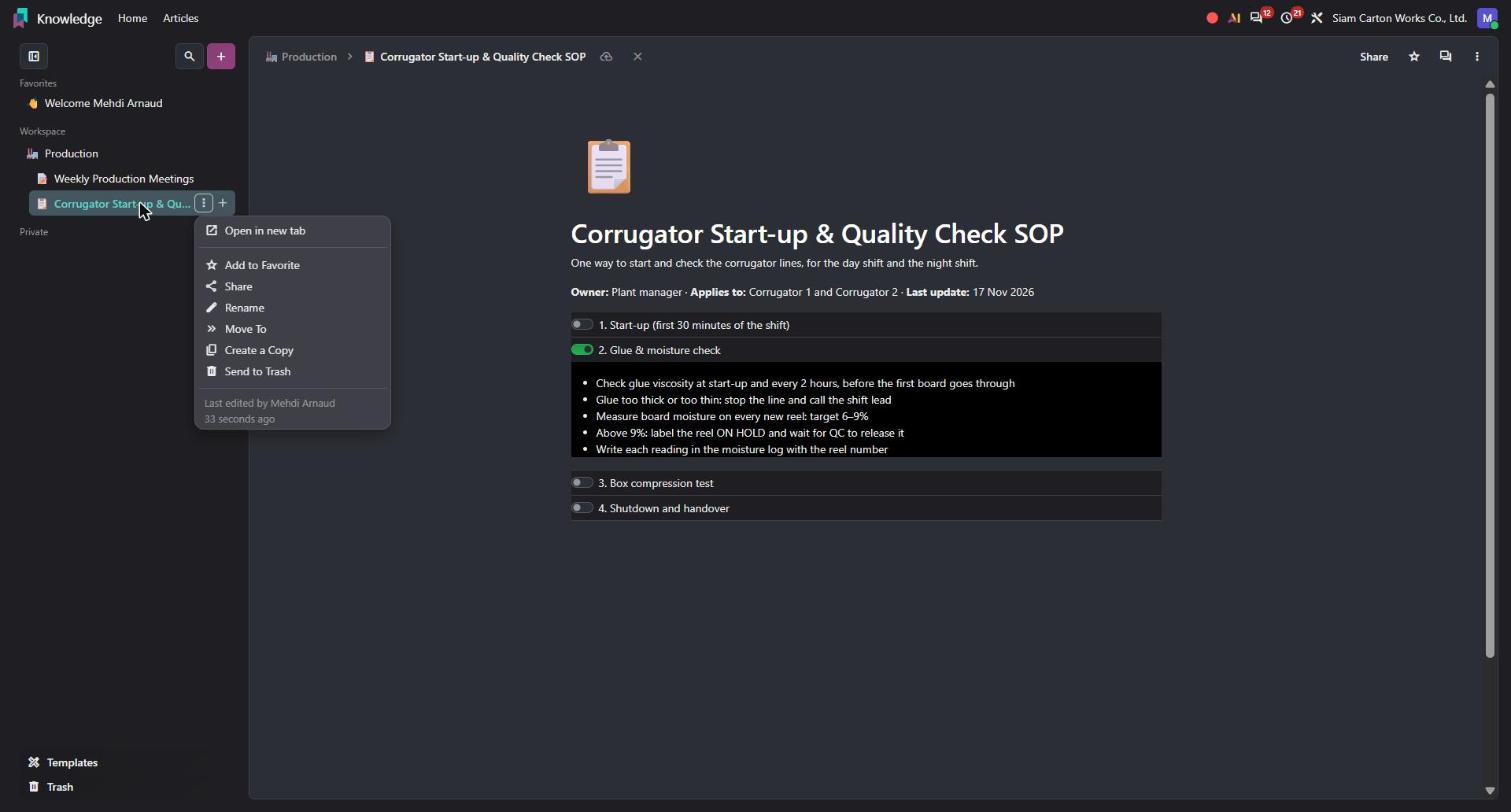
It's a small change. But when you look after dozens of SOPs, work instructions and meeting pages, it saves a lot of clicks.
What's next: meeting transcripts
Not every meeting happens in the same room. The Odoo 20 release notes also list call transcripts in Discuss: record Discuss calls and get summaries of what was said. For a plant manager who meets the night shift or a customer online, that summary is a good starting point for the next page of meeting minutes.
What this means for your factory
- Templates give every production meeting the same structure, so decisions are easy to find.
- One SOP for every shift replaces binders and chat messages that drift apart.
- Foldable sections keep long procedures readable on the shop floor: open only the step you're doing.
- Right-click settings in Odoo 20 let you share, rename, move or favorite an article straight from the sidebar.
- Decisions and procedures live together. The meeting decided on a moisture rule; the SOP now has it.
And because Knowledge is part of Odoo, your SOPs sit next to your manufacturing, inventory and quality data, not in a separate tool.
Want your SOPs and meetings in Odoo Knowledge?
At Stenas Digital, we help Thai manufacturers set up Odoo around the way they actually work: your shifts, your quality checks, your weekly meetings. We handle implementation, migration and support, in Thai and English.
Book a free demo with our team: Hello@stenasdigital.com